This video provides a comprehensive tutorial on using Kraken Pro, a trading platform designed for cryptocurrency and fiat currency exchange
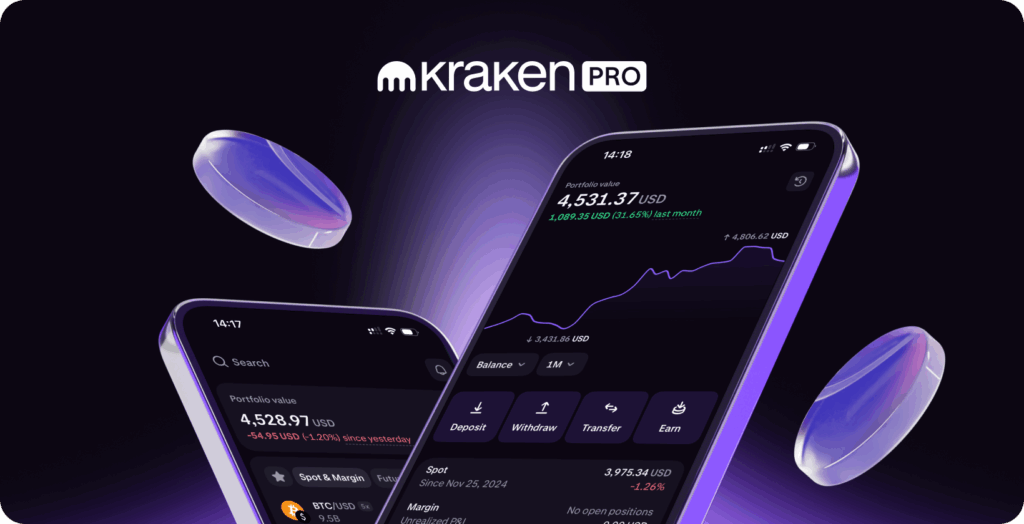
The detailed walkthrough includes navigating Kraken Pro’s user interface, displaying balances, open orders, and positions, and using the diverse trading tools offered.
We cover the order types (market orders, limit orders, stop orders including stop-loss and take-profit, iceberg orders, and trailing stops), their practical applications, and how to use features like the “post only” option to prevent accidental market orders when using limit orders.
Finally, we highlight Kraken Pro’s analytics section, offering insights into trading activity and market dynamics.
How To Use Kraken Pro

I definitely recommend using Kraken Pro because the trading fees are way cheaper than the Kraken website.
So if you have a kraken account already then you can just flick over to Kraken Pro and use this all of the assets are fungible between the two accounts.
If you don’t have a kraken account yet sign up here and then you can open one account and use both Kraken and Kraken Pro on the website you flick between them if you’re using the apps on your phone.
These are actually two separate apps so you need to download both applications and then you can log in with the same account in any case Kraken Pro here trading fees start at 25 basis points 0.25% much cheaper than the Kraken site so I definitely recommend using it.
Then once you’re in Kraken Pro you can see all of your balances so spot is any crypto and F currencies right here if you have any earn assets I’ll show you that in a second that will be displayed here any nfts and then your balance is down here.
If you have any open orders you know you’re trading anything you can see them all here in the list any positions that you have open which I’ll show you in a second but these are our balances that we’re not trading so that’s what we have in our account now from here we can see on the left hand side all of the different aspects of Kraken Pro if you want to make a deposit into Kraken you can do that via Kraken Pro as well so go to deposit and then here we’ll look at Fe currencies first so you can search you know GBP USD
You can see them all here you know JPY right Canadian aie dollar many other currency supported choose the one that you want I’ll just show you with pound as an example press deposit we have various deposit methods here so PayPal you can just you know send in from your PayPal account if you have that the fee is 2.4% so I really don’t recommend it what I do recommend is either manual bank transfer or easy bank transfer so easy bank transfer is they will actually open up essentially your
banking app on your phone so I do this on the phone if it’s easier for you in craen Pro it will go ahead and open up your banking application so if I click this it will say where exactly do you want to send from so click this press continue and it says choose your bank right so on your phone go and choose the bank app that you have it will open up your bank app and then you can just create the deposit it very easily from your bank app send the money over just like sending to wires or Revue or
something like that if we go over to manual that’s just going to give us banking details so let’s say that I want to send in Via Swift it’s going to say here are the Swift details right we’re going to give you the details get deposit details that’s the banking details so go over to your bank put in these details and for the most part I think krack can actually give you a unique bank account so you don’t need a reference however that may change depending on which country that you live
in so some countries will require aay P reference Kraken may give that to you read the instructions you can see send in the bank details there so that’s how you make a deposit to Kraken of fat currency once that fat currency is in then you can trade it for cryptocurrency if you want to withdraw fat currency it’s exactly the same thing you just need to make the banking transfer so go to withdraw search for the asset that you want to withdraw so we’ll look at dollars here USD and for me it’s only
Swift if you’re in the states I think maybe a is an option as well Swift here we need to add the account here so we click that and then add the Account Details iban bank account number Etc you can add that in and what you may have to do if you haven’t withdrawn before is to actually send a transfer into Kraken first to prove that you have that account so you put the details in send in a small amount and then once they prove and have linked that account then you can make a withdrawal from there so
go and add those Bank Account Details if you have Fe currency on Kraken you can withdraw them eventually to your payment method there and whatever bank that you put on the system depositing and withdrawing cryptocurrencies is much the same so again go to deposit then we’ll search for a currency that I’m going to put in here so we’ll transfer some usdt over to Kraken so press this and then we have our deposit address here I’m going to send on any network it doesn’t matter I’m going to send from another exchange
so I’ll just use a cheap Network like arbitrum 1 and it’s going to give me my deposit address I’m going to copy this and then go over to my different account on binance I obviously have to make a withdrawal because I’m sending it from binance over to Kraken so I’m sending withdrawing usdt and I’m going to paste in the address here and then I’m going to select the network I know that the network that I’m receiving on from Kraken is arbitrum so I have to make sure that binance sends over arbitrum as
well which it does so I’m going to click this one and then you can send out any amount now if you’re using a wallet then just send in from your wallet again I’m sure if you’re using a wallet you know how to do this but that is withdrawing from one platform and really the main thing here is that you’re sending the same asset on the same blockchain and this is your address right so as we go back to Kraken you’ll just get all of your deposit addresses for the assets and the chains that they support right
so this is tether and arbitrum 1 and if I choose a different asset so let’s go out choose um deposit here and then we’ll choose Bitcoin for example so BTC and then we want to deposit over the Bitcoin Network it’s going to give us our deposit address right so whatever asset that you want to deposit in it’s going to give you the address and you just send to that address from wherever you’re sending from Kraken Pro also has a very good analytics page so if we click analytics you’re going to see the
analytics of the currency pair that you’re trading so Bitcoin USD that’s the currency pair that we’re looking at now but you can change that to anything that you want eth or any of other assets and it’s going to show you relevant analytics for that so this is the price obviously over one day 1 hour you can see this aggressive differential this is the difference of maker taker so if you’re trading you know maker taker is a little bit different a maker of liquidity is someone that uses limit
orders they actually put a limit order onto the order book they show their order and they wait for it to trade they make liquidity because they’re showing their liquidity to the book waiting to trade now if you’re a taker of liquidity you’re taking other people’s orders so you come in you see someone’s order and you take it and you’re taking that liquidity off the book now kren run a maker taker fee model where if you are a maker of liquidity using limit orders and showing your orders you get 25 basis
points fees if you take liquidity you pay 40 basis points fees so this aggressive differential it basically just shows what orders are are they maker or taker right and so you can see on the S side basically people coming in selling down and and selling off and actually hitting the bid right so essentially you’ve got a lot of sellers coming in wanting to sell and get the price lower if you’ve got a lot of buyers coming in pushing prices higher taking people’s offers then what you may
see here is that prices will move based on this right now you can’t really predict anything based off this because it’s just previous data but anyway that’s what it shows you can see the trade count here and some other information not massively useful for trading because you know you’re not going to make too many decisions off this but it is good analytics anyway so you can see how the Market’s moving if we move to our portfolio you can see the trading system from here down here is
all our balances you can see them over time and then on the right hand side just below my head you can see three dots if you click those you see the Box comes up here it says balance breakdown we can see deposit withdraw so you can click those and what we can do is press go to market and then it takes us over to the trading page of the asset that we want to trade the trading platform just gives us four boxes of information that we need when we trade the first one is how do we enter our orders that’s on the
left hand side you can flick between buying and selling right here and then this is the order book like I said a market is a book of orders people showing their orders so if you’re using limit orders you’ll be showing your order on the book I’ll show you how to do that in a second and if you want to trade straight away you can use Market orders here and then you can take other other people’s liquidity and trade with them either buying or selling but we are actually looking at the real market
right now right so this is buyers and sellers showing all their orders saying I’m willing to trade at these prices this is the price chart of the assets that we’re looking at so this is Bitcoin against USD we’ll go up to the left hand side and and we’ll choose some other assets right so eth this is eth usdt so we can click that and now we’re trading eth usdt you can see the price changes the price chart changes up here it’s important as well if you want to trade in and out of fat currencies then up
here you can choose between them so these are all the currency pairs that you want to look at so what we can do is go to for example USD that’s different than usdt right usdt is a stable coin This Is Us doll cash that you can sell to if you’re looking to withdraw cash from the platform same for yen and same for many others right we can see Euros GBP you can see them all here these are currency pairs against the Euro so if you’re looking to get in and out of a fe currency you have to trade
the fat currency pair if you’re looking just to trade in and out you might want to trade to usdt if you’re looking to withdraw it to your own wallet or something like that so we can see that we’ll go back to bitcoin Bitcoin usdt this is the currency pair so make sure that you’re trading the assets that you want to buy and sell from here the order book is the actual market and we can join it or we can take other people’s orders and down here this is simply where we see what we’re doing so we have
no o Open orders right now we have no positions you can see that however if we open some orders they will be listed down here and so we can go ahead and enter some Market orders or some limit orders now we’ll go through some sample orders and the different trade types that we can use on Kraken Pro so you just need to make sure that you’re trading the asset pair that you want to trade Bitcoin usdt so I’m buying just to be sure we’re buying Bitcoin so buy BTC and the other side of the pair is usdt
so that’s the one we’re selling if you sell you are selling BTC the other side of the pair is usdt so they’re the currency pair that you would trade we’ll go to buy first um we’ll use a market order so that means we choose the amount that we trade but we don’t choose the price that we trade at we’re going to be paying those taker trading fees which is 40 basis points I have an available balance here as you can see you can see down here as well right your available balances of both sides of the
currency pair so we can go ahead and buy um we don’t choose the price we’ll buy this amount by BTC that’s immediate so we’ll press confirm that goes through immediately so you’re not working any orders here that’s literally done and you can see that the balances will now change of usdt and Bitcoin so that’s a market order you get the order done straight away however you can’t choose the price that you pay and you pay slightly higher trading fees we can also use limit orders when we trade so
changing from Market where we can’t choose the price it’s just market price we can go to limit and that allows us to choose the price that we trade at so this is the actual market for BTC what it’s telling me is you have buyers and sellers here that are willing to trade at 92882 and then the spread between them is one right so one basis point basically right you can see 0.1 to or 0 0 Z to 0.1 right so a very small difference between them now when they meet in the middle that’s when they
trade right so for us what we can do is we can put a limit order in and we can choose any price that we’re willing to trade at with a limit so if I say right now my limit price is 100,000 then I will press buy BTC and I’m I’m going to basically trade this price here which is the best or the cheapest seller at the moment right so we’re going to take their offer because our limit price which telling the system trade right now as long as the price is 100,000 or better we’re going to trade
right here basically our our order here even though it’s a limit order we’re going to be trading like a market order because we’re just lifting the best offer our limit price is way above the market right so we can do that press buy you actually buy immediately I can also go way below the market price right so something like this we want to buy but we’re telling the system buy right now as long as the price is 80,000 or better but it isn’t right now so what’s going to happen we’re just going to join the
order book down here somewhere at 80,000 so what I’m going to do is go ahead and buy um this and 180,000 limit press by BTC confirm and what we’ll see is that the order goes into the system in open orders but we haven’t traded right now the reason being is that our limit price is below what other people are willing to pay so we’re never going to trade with anyone so the system keeps the order it says yeah we’ve got your order it’s open we’re working it here’s the
current price here’s your limit price here’s how much we’ve actually traded which is nothing right so you can see that on the right hand side just below my head you can edit this um so I’ll click the edit button comes up here you can see you can edit so let’s change the price to something different 88,000 same quantity right whatever it is confirm edit confirm that confirms the order right so you’ve now changed that the the limit price is different then the other button just BL let my head here is an X so I’m
just going to X that cancel the order that’s out the system we’ve not traded anything because our limit price is way below but we can put those orders in and the system will work them for us as a limit and so that’s the way you use Market limit orders if you use a limit order and your price as a buyer is well above the price your order is basically a market order at that point because it’s way above the price right if you’re a seller let’s say 100,000 my order price would be up here which is not
going to get traded if I put my price in here at 50,000 I would trade immediately at this price 92 857 right so what we can do with limit orders is because there’s a difference in trading fees between markets and limits right limit you have 25 basis points fees Market is 40 basis points so what we can do to make sure that we don’t muck up with our trade is put this tick box on here which is Poston post only prevents you trading a limit order like a market order right so if I press sell BTC right now and my
limit price is 50k I’m basically trading a market order at that point right because my limit price is way below the mid price and so if I press sell it’s going to sell immediately for me but maybe I don’t want to do that maybe I made a mistake and I I missed out a zero or something right like if you were buy if you were selling and you wanted 98,000 but instead you missed a zero out and you put 98 ,000 9,800 it would sell immediately right that would be a wrong order put post only in it prevents you
from doing that if the order cannot go in as a limit order like this right if the order cannot go in as a limit order which is on the sell above then it will cancel the order out for you and and make you go again so it’s like an insurance where you’re not going to kind of make a mistake same for the buy side if I put a buy order in at 100,000 that would immediately go through and so it would cancel out if I’ve got this on if I take this off you will trade immediately so that’s a bit of insurance using limit
orders if you want to Kraken Pro also lets us Trade Stop orders and we can use these in two different ways you can use stops as a stop loss you can also use stops as a take profit the type of order that we’re using is a stop order or a trigger order basically we put in a trigger price where the order gets input into the system and we have to use these if we’re trading away from the price so let’s look at stop- loss first so stop loss here so like I said if you’re using a limit order and I put in
a limit price which is below the market price it trades immediately right because what we’re saying to the system with the limit order is trade immediately as long as the price is is better than my price with stops what you’re doing is telling the system only trade if we meet a specific price level so with a stop loss what you’re saying is I’m going to sell BTC and I’m going to tell you where that trigger is so for me the stop is going to be 188,000 and I can see the quantity that
I trade is $5 so what we’re saying here to the system is when the price of Bitcoin is 80,000 sell my Bitcoin right now that is actually selling at a loss from where we are right now right the Bitcoin price is 93,000 so this is known as a stop loss because what you’re doing is taking a loss on your trade because you could sell it now for more but you want to sell it later for less it’s known as a stop- loss because a Trader may want to limit a potential risk in the trade so if they’re in a trade here
or they have Bitcoin at a certain price and they say I’m happy for it to go down a bit but if it goes below 80 I think it may crash a lot more and so I want to sell out at 80 at a loss or a lower price than now because I think it might go down a lot more than that this is not as a trigger order because if you put this is in as a limit order it wouldn’t work if I use a limit order here and say my limit price is 80k then it’s going to sell immediately because the price right now is 93,000 so this is known as a stop
loss to the downside it’s basically a stop order or a trigger order you see the trigger here what you’re saying to the system is if the price reaches 80k sell this amount of Bitcoin as a market order immediately you can also use stop-loss limit which adds in the limit portion so again the trigger is the same but instead of selling at a market order which is stop loss we can put the limit in so I can say 80,000 is my limit so the trigger is 80,000 that’s when the limit order goes in and my limit price
is 80,000 to sell you can also say 100K here now what that would do is if the Bitcoin price got to 80 that’s the trigger to input the limit order the limit order then sells at 100 you’re not going to sell anything because presumably the price is 80k because the trigger hit but your limit order would go in at 100K you’re not going to trade anything there unless you change it around you can also say that your limit is 50,000 so if the price crashes at 80 the trigger comes in and then you may
sell at you know 79 998 or 79996 or something like that but your limit would be 50 if the price literally just went straight down the trigger may come in and if the next traded price was 40K then again you wouldn’t sell so that’s the the limit there you can use either of those that’s used on the downside right so you’re selling as a stop loss so you’ve got a Bitcoin position and you want to sell at a lower price and now and you put the trigger order into the downside we can also use trigger orders
as take profits which is where you’re selling above the current price so press take profit with a li with a market order or take profit with a limit order so the trigger order here 100K that means our sell order goes in at 100K and then our limit could be anything we want it could be lower or higher so we could trigger the order at 100 and that puts a limit order in to sell at 120 choose the amount that you want to trade now at this point you may as well just use a limit order right because it’s the same
thing if you’re putting in a limit order to sell at a at a price above the current price right then you can just put a limit order in you don’t need to use take profits here just use a limit order if you’re trading larger amounts of Bitcoin you can use Iceberg orders this like the name suggests only shows a small fraction of the order and then you have much more underneath that will trade over time so essentially what you’re doing is telling the system look I’ve got one Bitcoin to trade but I only
want to show the market a fraction of that each time so choose the amount that you want to trade in the price so the limit order here that I’ve got I’m trading one BTC and then the display quantity is how much you want to show to the market each time so I’m displaying 0.1 of a Bitcoin so if we trade that 0.1 of a Bitcoin then the next 0.1 shows up and the order book at the same price and the next one and the next one so instead of just showing one big chunk of BTC you kind of eek it into the market in chunks
this is if you’re trading much larger amounts and you don’t want to Spook the market with a you know big order but to be honest Bitcoin is so liquid it’s not going to really matter for most people we can also use trailing stop orders on Kraken Pro a trailing stop is usually used as a sell order where you don’t mind tracking the price up because you may get a better price but if the price starts falling you don’t want to move your trailing stop down with it you just want to sell so I’ll show you how this
works we’re a seller of Bitcoin and the current price is 93k now we’re happy to sell at 93 but if the price moves up we want to get a better price as well so we choose the trailing offset so the price is here and our trailing offset is 5% below now if the price of Bitcoin just moves straight down by 5% we trade at a 5% worse price but if the price of Bitcoin moves up we stay 5% behind it so if the price of Bitcoin moves up 5% then we sell 5% higher than our stop if it moves up another 5% we we trade another
5% higher we still don’t sell until the price comes down from that and then hits our 5% stop so this is a way of trying to Trail the price upwards and getting a better price for your sell and then if the price does come down then you sell there so trailing offset is 5% choose the amount that you want to sell and then press this what you’ll do is you’ll put your trade in and the trade will be right here if the price moves straight down then you get a 5% worth price but if the price moves up like
this then our trailing stop will also move to remain 5% below it and then we Trail it up so really it’s an order for you know you’re looking to sell you don’t mind about a 5% difference and you’re hoping to take a flyer that if the price does move up you’ll actually get a much better trade so that’s trailing stop Kraken Pro also lets us very easily stake Assets Now this won’t be available in every country um so you’ll just have to check availability where you are but if you do have one of
these assets that allows for staking you can use Kraken Pro to stake them now you can do this yourself you can take self custody of the asset into a wallet that you own you can go to the blockchain and and stake on there Kraken just do this for us make it super easy we’re giving Kraken custody of our assets but if you do have assets here they will stake them for you so you can see kadano polka dot Cosmos all of these here and you can see the estimated aprs this isn’t lending or borrowing or anything like that these
are proof of stake chains that pay proof of stake rewards and Kraken are just doing this for us and giving us an easy way to do it so if you have one of these assets you can tie it up with staking so we’ll press stake like this and it says you’ve got some assets here that you can stake so we’ll press this one and the max amount that we can go ahead and stake and we can do flexible or bonded now flexible means that you can essentially take the money out instantly if you want to but you get obviously a
lower rate there as you can see for bonded that means you are putting it on the blockchain tying it up most blockchains have an unbonding period a week 7 Days 20 days something like that if you don’t mind waiting for that then you get the full rewards of the blockchain if you’re happy to let Kraken give you the flexibility they’re going to charge you a you know charge you a rate for that and give you a low rate so just press Max or whatever you want to stake press stake right here that Stakes
the asset for you simple as that and it just takes away all the blockchain stuff but you’re just giving Kraken the assets they’re going ahead and staking it on the blockchain I’ll leave a link below to Kraken if you do want to sign up for an account and some other helpful videos down there as well I’m James it’s money G here for watching and I’ll see you in the next one
read more

Use MT4 to Trade ByBit's Crypto Derivatives Contracts

Getting Up To 35% Commission From ByBit

How To Buy Polkadot $DOT on Binance

Bitcoin Cash Futures Now Live on BitMEX

Bitcoin Breaks $300. Is the rally on again?


